Feedback Widget
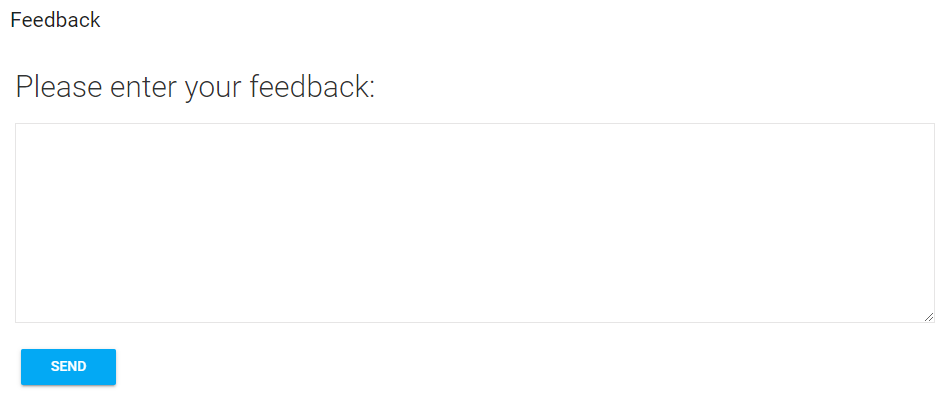
This widget allows administrators to solicit feedback from users. This feedback can be set to send anonymously or to name the sender. You can choose the email address that will receive the feedback submissions.
Settings Tab
General Options
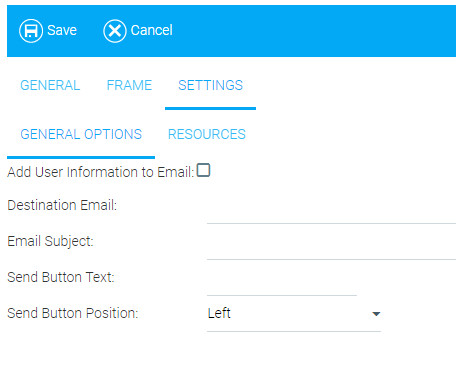
- Add User Information to Email
- Check this box if you want the submitting user's information sent in the feedback email.
- Destination Email
- This is the email address that will receive notification of each feedback submission.
- Email Subject
- This is the subject that will auto-populate for each email sent after feedback is submitted.
- Send Button Text
- Use this feel to customize the text displayed on the Send button (e.g., Send, Send Message, Submit Feedback, etc.).
- Send Button Position
- Use the drop-down menu to designate where the Send button will appear on the Feedback widget (i.e., Left, Right, or center). The default setting is Left.
Resources
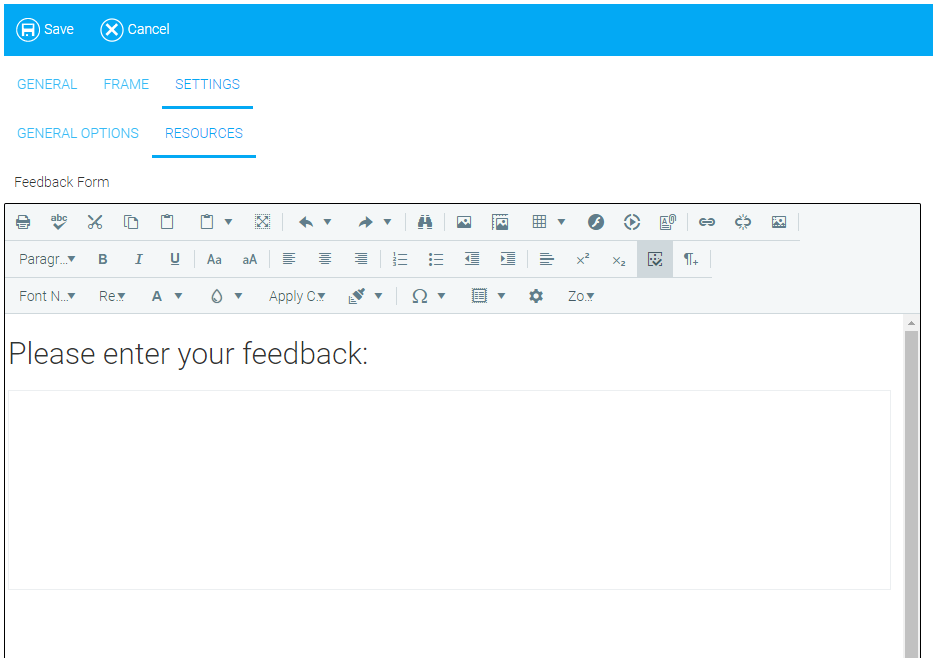
Use this sub-tab to make any changes to the formatting of this widget. You can use the rich text editor to change the verbiage, text formatting, add links, etc. You can also use the HTML editor to make changes (e.g., changing the height of the text box from 200px to 300 px to give the user more room to respond).
Click Save when you are finished.
End-User View
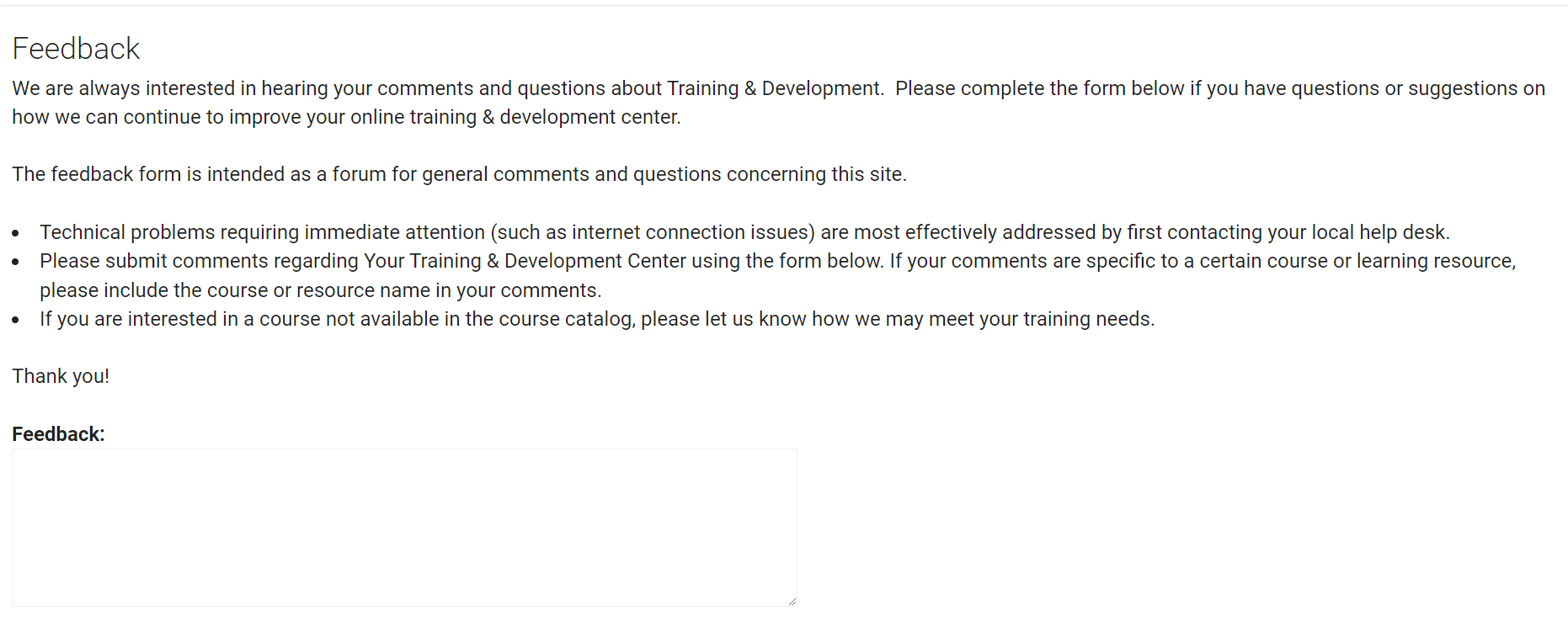
Below is an example of how someone might use the Feedback widget with customized text and settings.
Related Links
Announcements
Approvals
Featured Courses
Manager News Feed
My Awards List
Recently Run Reports
Rich Text / HTML
Scripts
To Do List