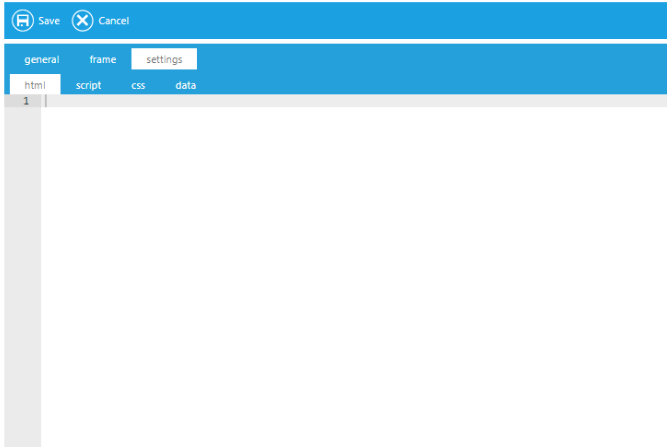
This widget allows an administrator to add other widgets, YouTube videos, third party sites, formatted text, graphics, and embeddable links to create a unique widget. It allows for greater customization of the LMS itself.
Use the sub-tabs on the settings tab to choose which type of script you wish to enter (e.g., HTML, JavaScript, CSS, etc.). Enter the code or embeddable link directly onto the sub-tab.
The Script widget can be used for many different scenarios. Let's look at a couple examples of how you can use the Script widget.
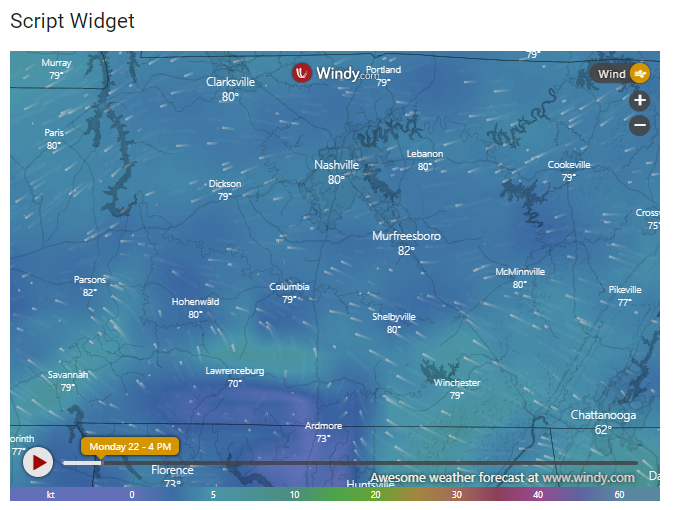
Let's say you want to add a widget to your page that shows local weather. Visit the weather site that you want to embed and locate the embeddable code. In this case, we are using windy.com.
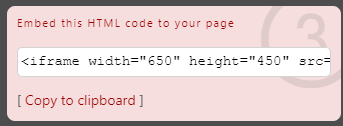
Since this is HTML code, copy and paste it to the HTML sub-tab on the Settings tab of the Script widget. If desired, you can edit the height and width of the frame directly in the code.
Click Save when you're done.
Locate the video you wish to display and click the Share button.
Select Embed.
YouTube will generate the embeddable code. Click the Copy button.
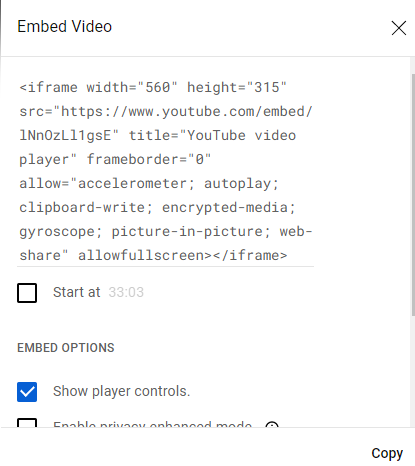
Paste this code directly into the HTML sub-tab on the Settings tab of the Script widget. If desired, you can edit the height and width of the frame directly in the code.
Click Save when you're done. The YouTube video will now be playable from the portal page.