Approvals Widget
The Approvals widget provides a list of all items awaiting a user's approval. It generally provides the user's name awaiting approval, the course name, cost, and date. You have the ability to approve, decline, or hold a request. You can also leave a comment with your response.
The Settings Tab
General Options
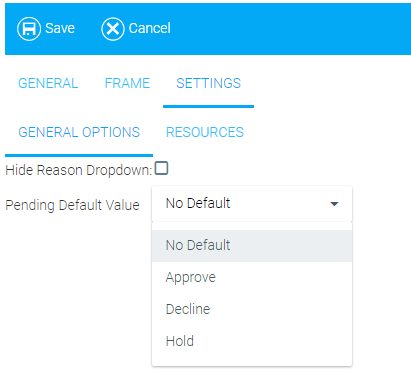
- Hide Reason Dropdown
- This option requires additional configuration. If the Reason Dropdown has been configured for your implementation and it is referenced in the Resources tab for the Pending Approval Repeater, this checkbox will be available. Please contact the Support Team to inquire about implementing this feature to your system.
- Pending Default Value
- Use this drop-down menu to designate which value will be selected by default upon accessing the Approvals widget. The options are Approve, Decline, Hold, or No Default. If Approve is selected, each approval request will show the Approve radio button selected upon initial access to the widget, and the approver will have the responsibility of determining whether that button needs to be changed to Decline or Hold. If No Default is selected, none of the radio buttons will be auto-selected and the approver will have to make a selection.
Resources
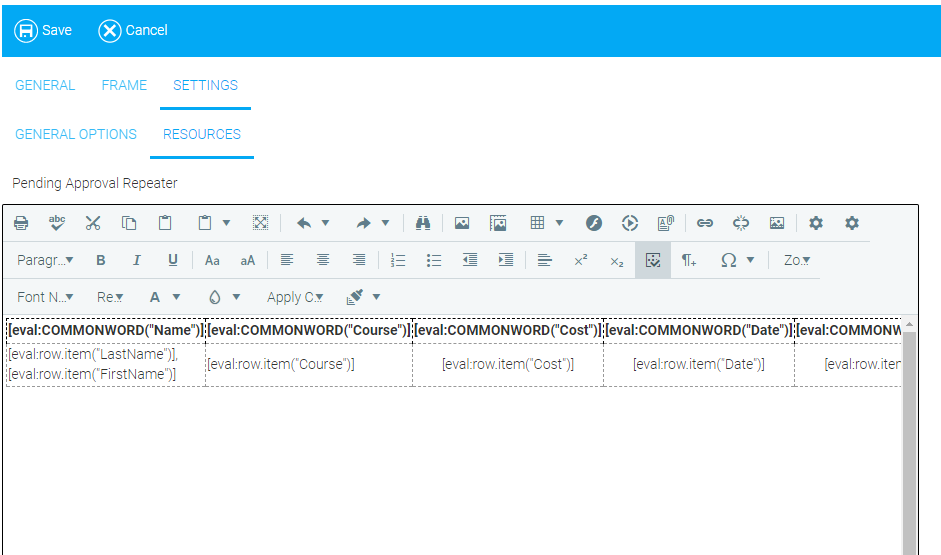
The Resources sub-tab allows you to use the rich text editor to make changes to the message sent regarding pending approvals.
Using the Approvals Widget
The Approvals widget lists the requester's Name, Course, Cost (if any), Date, your approval choices (e.g., Approve, Decline, Hold), and a space for comments for each approval request.

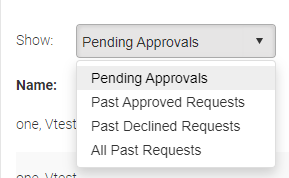
By default, you will see Pending Approvals upon accessing the widget. You can use the Show drop-down menu to view Past Approved Requests, Past Declined Requests, and All Past Requests.
Once you have made all of your approval decisions, be sure to click the Save button at the bottom of the screen.
Related Links
Announcements
Featured Courses
Feedback
Manager News Feed
My Awards List
Recently Run Reports
Rich Text / HTML
Scripts
To Do List