The Flash Manager is a component of the LMS available from the Rich Text Editor. Note: Flash is no longer supported on modern browsers for security reasons, but is provided in the LMS for backward compatibility. The Flash Manager button displays the Flash "F" icon.
To add a Flash object, click the Flash Manager button in the Rich Text Editor toolbar. The Flash Manager will launch and display the file structure you can access.
If the .swf file you want to use is already on the server, navigate through the folders locate it.
Click on the .swf file to select it. The Properties and Preview tools will appear in the right-side panel.
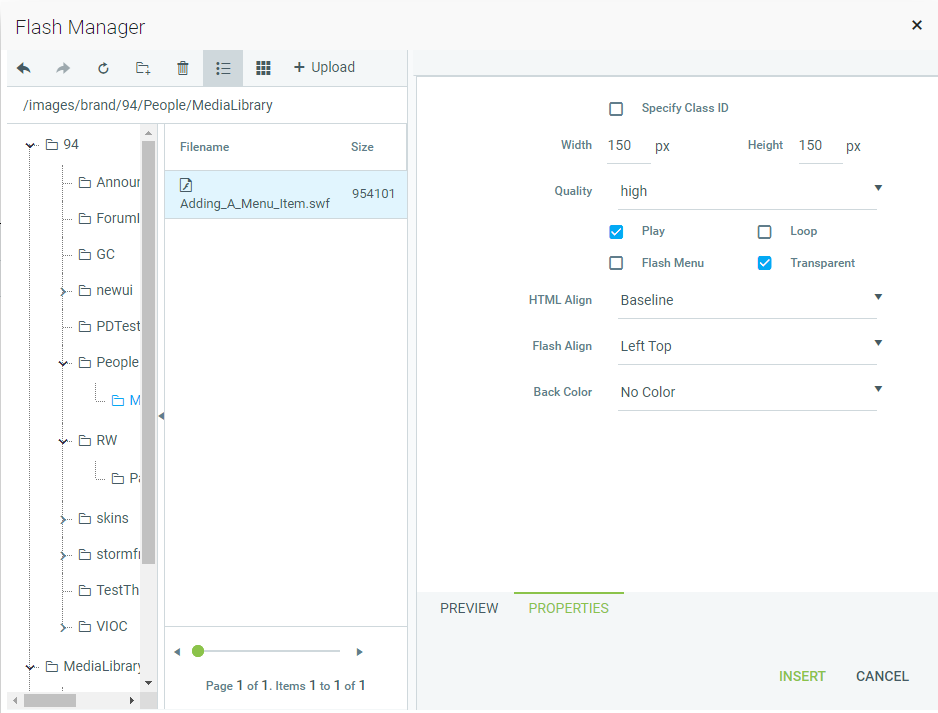
If you know the specific Class ID of the object, select the Specify Class ID check box. A text box will appear where you can enter the Class ID.
Change the default width and height, if you wish.
Click the Quality drop-down and select high, medium, or low quality playback.
Select the Play check box to have the movie play automatically, once through. Select the Loop check box to have the movie play continuously.
Select the Transparent check box to allow the flash to display over any background.
Select the Flash Menu check box to allow the user to right-click on the object and view and change its options via a contextual menu.
Click the HTML Align drop-down and select how you want the object aligned in the paragraph.
Click the Flash Align drop-down and select how you want the object oriented within the pane.
Click the Back Color drop-down to select a background color for the object, if desired.
To preview the object before inserting it, click Preview.
Click Insert to place the object into the rich text.
Once the object has been inserted, you can click once on it and use the handles to resize it manually. To change its properties later, click once on it to select it, then click the Flash Manager button in the tool bar.
You can also upload a new Flash object. To do so, click the Upload button in the top toolbar of the Flash Manager window.

Navigate to the object on your hard drive and upload it.
Click the Overwrite if file exists check box, if you are replacing an existing Flash file with the new upload.
To delete a Flash object in the Flash Manager, navigate to the file and click once on an object's file name to select it. Then click the Delete button in the toolbar.