The Email Queue
Viewing the Email Queue
Viewing the email queue allows you to view and troubleshoot the status of email notifications. This screen also allows you to send held emails and to resend selected emails.
To view the queue go to System > View E-Mail Queue in the Navigation Bar of the Administrator's Console.
A list of email notifications will display.
The results will be limited to 3000 rows.
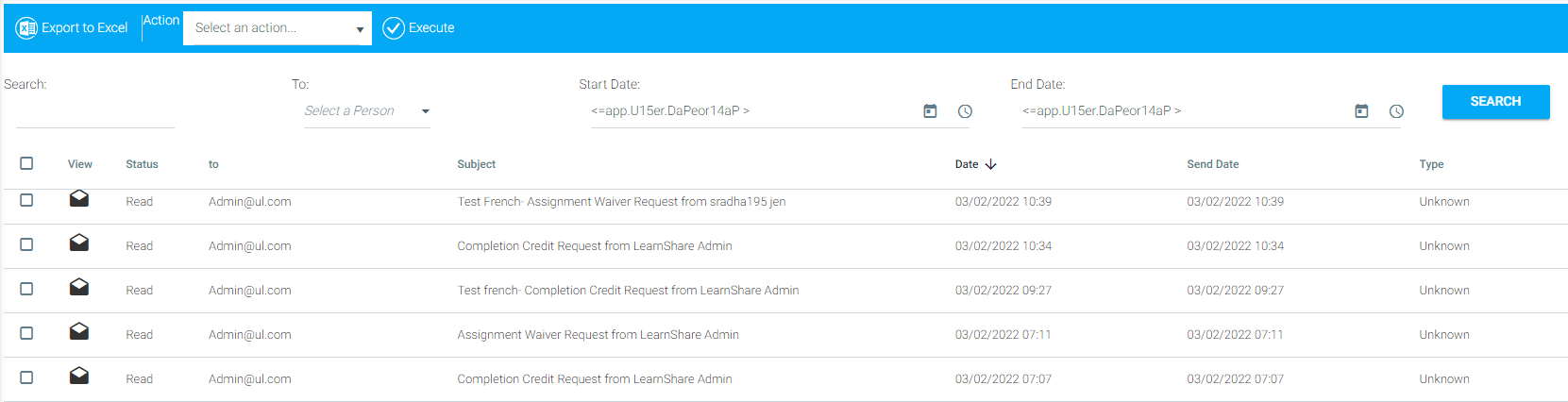
The columns in the Results Grid are:
- View
- Click on the envelope to view the entire email.
- Status
- This is the current status of the email. The options are Sent, Queued, and Held. A Queued email has not yet been sent. A Held email is unsent because the number of emails queued exceeds the number entered in the Expected Count box on the Notifications screen.
- To
- Email address of the recipient.
- Subject
- Subject line of the email.
- Date
- Date that the email was queued.
- Send Date
- Date that the email was sent.
- Type
- The type of email that is listed. These types correspond to the available Default Notifications.
Sorting
By default, queued emails are sorted by send date. To sort the queue by a different criteria, click the desired column heading.

Searching
Use the Search functionality to search by person, and/or by search term, and by date/ time. To search:
- By Person
- Enter a user’s name and a date range, and the system will list every email sent to that employee during that time. The clock icon allows a specific time to be set in addition to a date.
- By Search Term
- Enter a term from the email subject line or from the body of the email into the search box and then enter a date range. The system will list every email that contains the search term that was sent during the selected time frame.
- By Both
- Enter both a search term and a person to further refine your results. The Export to Excel option allows you to send all of your results to an Excel file. Click Export to Excel and follow the prompts.

Available Actions in the Mail Queue
The Action drop-down in the Email Queue allows you to:
- Send Selected held messages
- Send all held messages
- Delete selected messages
- Resend selected messages
To perform any of these actions, select the check boxes next to the emails you want to work with:

Select an action from the Action drop-down.
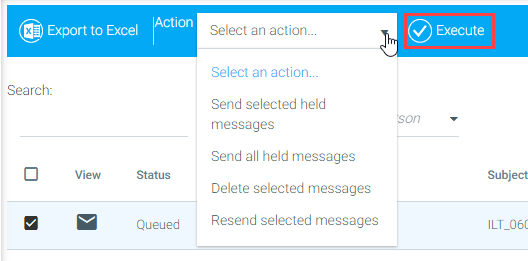
Then click the Execute button.
To select all messages in the list, select the check box next to the View column heading:
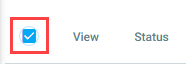
All emails that are sent by one of the above mentioned Actions will be sent within minutes of when the Action is executed.
Viewing Emails
To view the body of the message, click on the envelope in the View column.
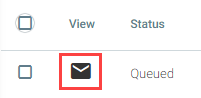
The message will launch in a new window. When you are done viewing the message, simply close the window to return to the email screen.