
The Hyperlink Manager allows you to create and attach hyperlinks to text or images in the Rich Text Editor. The Hyperlink Manager button displays the standard chain link icon.
To create a link, select the text or object that you want to set as a hyperlink and click the Hyperlink Manager button. The Hyperlink Manager window will open.
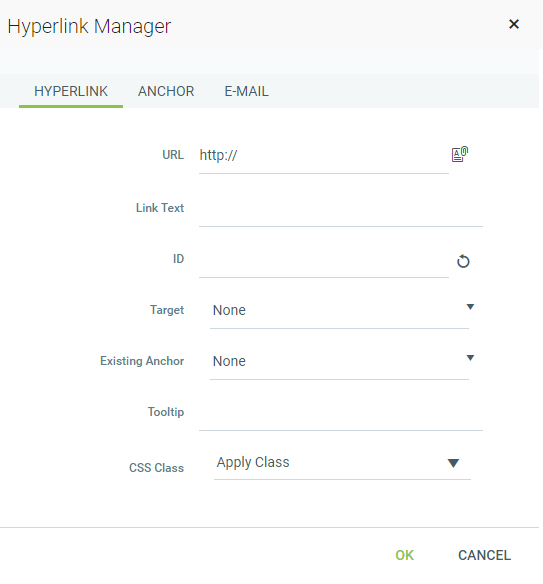
In the URL field, enter the web address that you want the link to point to. It is also possible to insert a link pointing to a document by pressing the Document Manager button to the right of the URL field.

Fill the Link Text field if you have not already selected text in the Rich Content Editor.
Select a target for the link, if you wish.
Enter a tooltip, if you wish. This text will appear when the mouse cursor is placed over the hyperlink.
Click OK to insert the link.
To modify a link, click inside the hyperlink or on the image if you have an image link. Either click the Hyperlink Manager button again or right-click and select Properties from the context menu.
Modify the hyperlink attributes (URL, tooltip, etc.) and click OK when you are done.
To remove a link, select the text or image that has been set as a hyperlink and click the Remove Link button. This button displays the standard broken chain link icon.

Named anchors allow you to create 'in page' links that move the user to a specific place in the webpage. These can still be created in the second tab of the Hyperlink Manager, but are deprecated in the HTML standard. Rather than using named anchors, it is recommended that you add an ID attribute to a header or similar element and use that as the navigation target for a 'jump' link.
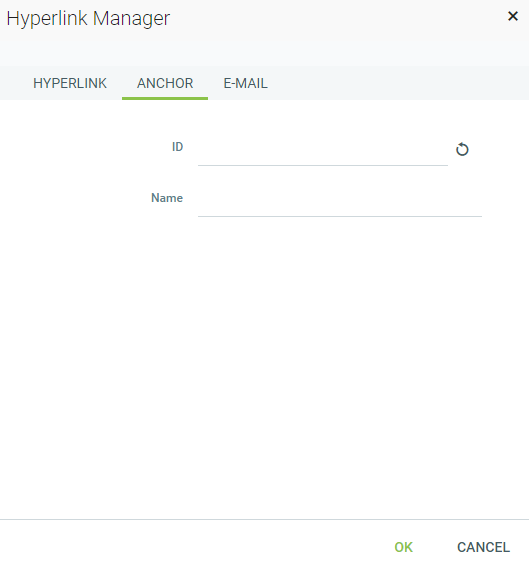
E-mail links do not lead to other web pages, but rather open the default email application on your machine and prompt you to send a message to the provided addressee. When creating email links, you can also specify a default subject for the message (e.g., Request for Information).
To create an email link, select the text or image that you want to set as an email link and click the Hyperlink Manager button.
In the Hyperlink Manager window, click the E-mail tab.
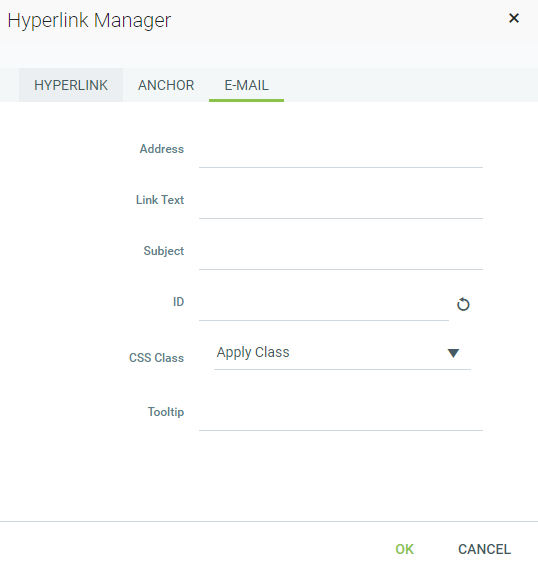
Enter the e-mail address in the Address field.
Enter a text that will appear as an email link, if you have not already selected link text in the Rich Text Editor.
Enter a subject for the email message in the Subject field, if you wish.
Select a CSS Class from the drop-down list, if applicable.
Enter Tooltip text, if you wish, to be displayed when a mouse hovers over the email link.
Click OK when you are done.