The Rich Text Editor includes several tools that help users paste formatted text from Microsoft Word, a web browser, or other applications. This feature applies different types of format stripping to ensure the pasted content matches all other page content.
The Paste button displays the standard clipboard icon. If you wish to paste in text while preserving the original formatting, use this option.
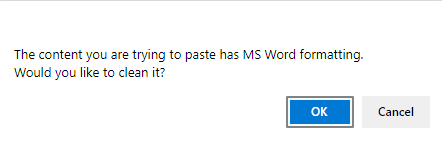
If you are pasting from Word, a pop-up box will ask whether the Word markup should be cleaned. This is recommended. When you click OK, the system will attempt to remove Microsoft Word-specific tags from the content before pasting into the system. This makes the content more readable across multiple browsers and platforms.
The Format Stripper button displays a document icon with a paintbrush. If you know that you wish to paste text while stripping away the original formatting, use this option.

Once you have pasted the formatted text into the editor, select the text and then select the appropriate option from the Format Stripper drop-down list. Options include: