Merge User Training
Due to various scenarios, there may be times when one user ends up with two profiles in the system. When this happens, the duplicate profile can be merged into the correct profile. The merging process can merge the Training Plan, Talent Profile, Performance Goals and Competency Assessments. To merge two profiles:
Search for the duplicate profile (the one that will no longer be used). In this document, this account will be referred to as the From account.
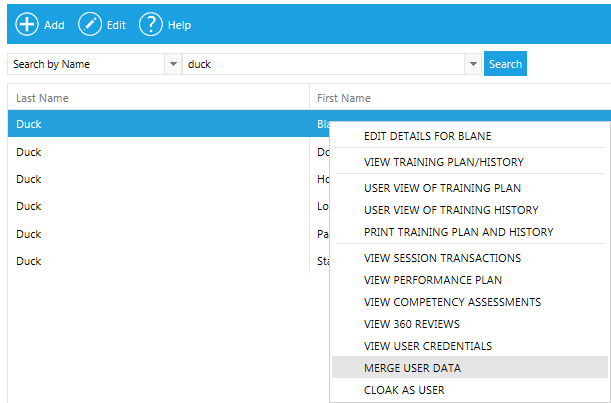
If you search via the Manage People and Security search screen, right-click on the employee's record and select Merge User Data from the pop-up menu.
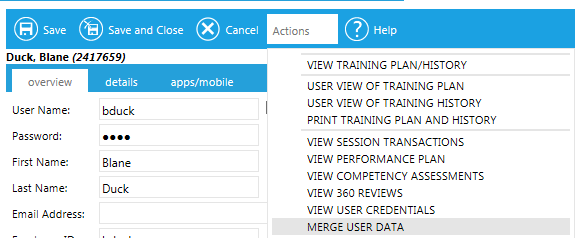
Or, if you are already viewing the employee's profile, click the Actions button in the menu bar and click Merge User Data.
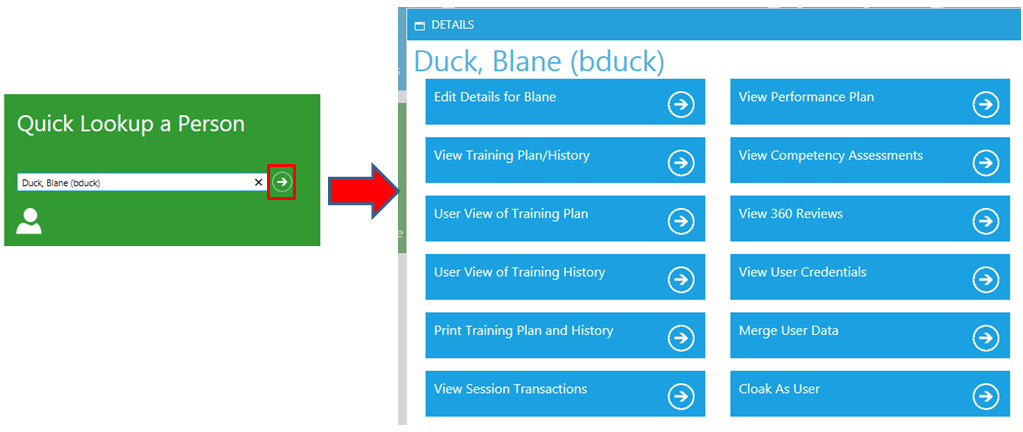
You can also use the Quick Lookup a Person tile on the Admin Console home screen and select Merge User Data.
When Merge User Data is selected, the following pop-up window will appear:
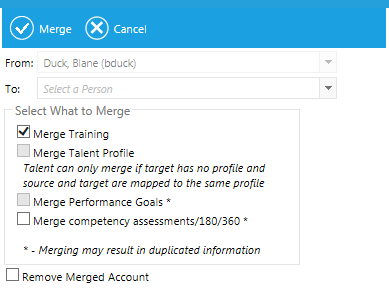
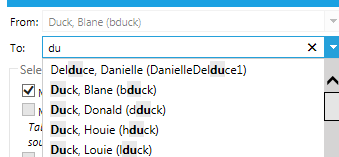
Begin typing in the To field to find the profile with which you want to merge (the correct profile).
Select the correct account to place it in the To field. The correct account will be referred to as the To account in this document.
Check the fields that you would like to merge.
By default only the Merge Training box is checked. This is the only option that pertains to LMS users. Merge Training will move all resources on the From account’s Learning Plan and History to the Plan and History of the To account.
If your system also has the Performance Management System installed, you will also have the following options:
- Merge Talent Profile
- Check this box to move the From user’s Talent Profile to the other account. This can only occur if both accounts are in the audience for the same Talent Profile and the To account’s Talent Profile is currently blank.
- Merge Performance Goals
- Move the Performance Goals over to the To account’s Performance Goal screen. Duplicate goals could appear if the same goal was listed on both accounts.
- Merge Competency Assessments/180/ 360
- Move any pending or completed competencies to the To account. This can also result in duplications.
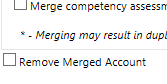
If you would like for the From Account to be permanently deleted from the system, check the Remove Merged Account at the bottom of the pop-up box.
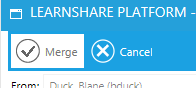
Click Merge.
A confirmation box will be displayed. Click OK to proceed, or Cancel to quit.
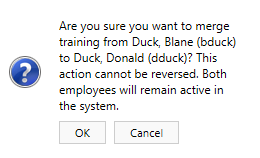
A confirmation window will appear when the operation is completed. Click OK.
Note: If you did not choose to remove the merged account, you can make it inactive if desired.