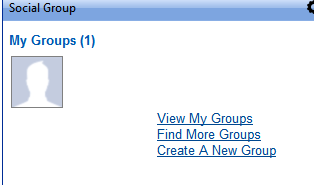
This widget allows end users to create groups that they can then invite others to join.
The widget allows users to view groups they are a part of and search for other groups.
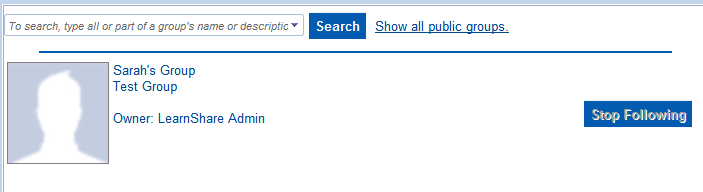
Click on the icon of a specific group to view information about that group. A pop-up box will show more detailed information about each group. You can also stop following a group by clicking the Stop Following button to the right of the icon.
If you know the name of the group that you would like to follow, begin typing the name into the Search box. The Show all public groups link will list all public groups. You can then choose to follow any one that you want. In addition to searching for a public group, you can also be invited to a private group by the group owner.
Based on your system’s configurations, all users may or may not be able to create a new group. To create a new group, click the Create a New Group link. The New Group pop-up box will appear.
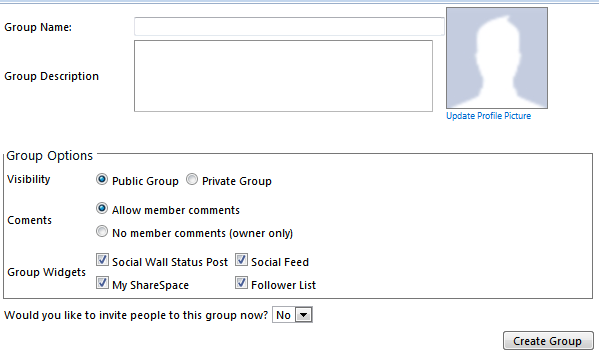
Enter a Group Name and Description.
If desired, upload a picture that will represent your group.
Select the Visibility of the Group.
Decide whether all members can post comments to the group’s page or if only the owner can post comments.
Select which widgets should be on your group page. The widgets listed on your site may differ from those pictured above. The widget choices are based on which widgets were selected by your site’s LMS Administrator when the Social Group default page was created. If you require different widgets on your group page, contact your site’s LMS Administrator with this request.
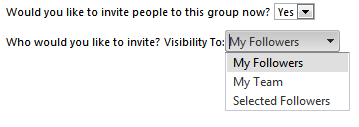
Decide if you would like to invite people to join the group. If you select Yes, you will be prompted to select who you would like to invite.
When all selections have been made, click the Create Group button.
Use the Settings tab on the widget to determine who in your organization is allowed to create a new group. Options include:
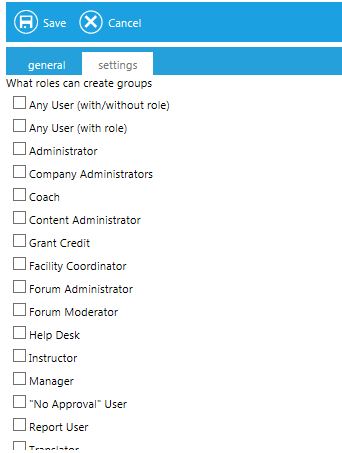
When a user creates a group, they will be able to select which widgets are on their group page. The widget options are determined by the default version of the social group portal page.