If it is configured in your system, the PowerPoint Conversion Tool allows you to quickly convert a PowerPoint presentation into an online course.
This is a powerful tool for your organization to leverage your valuable PowerPoint-based training material. The feature gives you the ability to easily convert your PowerPoint training into an online course that can be made available across the web as an LMS-based course. It even allows you to track learners' progress through the video course and whether they have viewed enough to be marked complete.
When your PowerPoint-based material is uploaded and converted into an online course, you can put it into catalogs for learner access, link to it from LMS pages, assign it as required training, track completion of the course, and run completion reports on it.
The PowerPoint Conversion Tool will retain and convert:
Once the conversion is complete, the newly created course will:
The only way that a user can be marked complete is to view every slide. If you have a test in your PowerPoint, the LMS is not able to score this test.
In that case, we recommend using the Maintain Learning Resources screen to create the test as a separate resource (content-assessment), and then create a certificate to tie the course and test together.
When you create a learning resource with the PowerPoint Conversion tool, the resource will function the same as other online courses in LearnShare.
If you have links to document types (.pdf, .doc, .mov, etc.) in your PowerPoint file, use the instructions below to prepare the file before converting. If not, skip to Creating the Learning Resource in LearnShare.
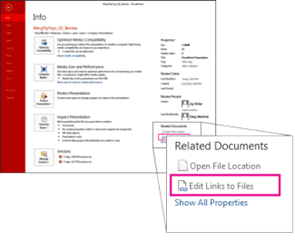
From PowerPoint, click the File tab, then click Info, and in the lower right corner under Related Documents, click Edit Links to Files.
Please ensure that the name of the uploaded file does not contain the following special characters: \ / : * ? " < > | & #
If the uploaded file name contains these characters, users may experience a blank black screen when they launch the file.
If you don't see the Related Document section, make sure you have saved your presentation.
If the PowerPoint contains links to .pdf, .doc, .mov, etc. document types, use the instructions below to prepare the file before converting. If the PowerPoint does not contain links to these document types, move on to Creating the Learning Resource in LearnShare.
Any linked documents will appear on-screen. Change each link by clicking Break Link. The content will still appear where you placed it in your slide, but it will be embedded in the presentation instead of linked.
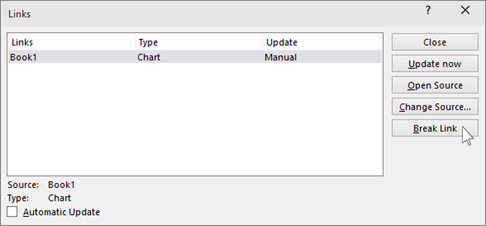
After breaking any links, save your file to a new file name so the original file continues to have the linked content. This new file is what you will load to the LMS.
For more information on how to manage linked content, you can review this Microsoft knowledge base article on the topic:
If your PowerPoint file contains links to external websites, please be aware of the following:
When you upload a PPT file using the PPT Converter tool, it transforms the presentation into an online course that plays like a video. As a result, hyperlinks embedded in slides will not be clickable during playback.
To ensure learners can access external links, consider one of these alternatives:
Add the link to the resource description
This ensures the link is visible to users before launching the course.
Include the link in the slide notes
When converting the PPT, check the box for “Include slide notes.” Learners can then open the slide notes from the course’s menu drawer and copy/paste the link.
The link will not be clickable here either.
Create a separate Read & Sign PDF resource
Add the link to the PDF and bundle it with the PPT course in a Certificate. This allows you to present both resources together as part of a single learning experience.
Once you have prepared your PowerPoint file as described above, follow these steps:
You will see a Convert icon in the toolbar. You can click this icon when you’re ready to upload your PowerPoint file. You can load a PowerPoint file immediately or save the learning resource and load it later.
After clicking the Convert icon, you can supply options for the playback for your course.
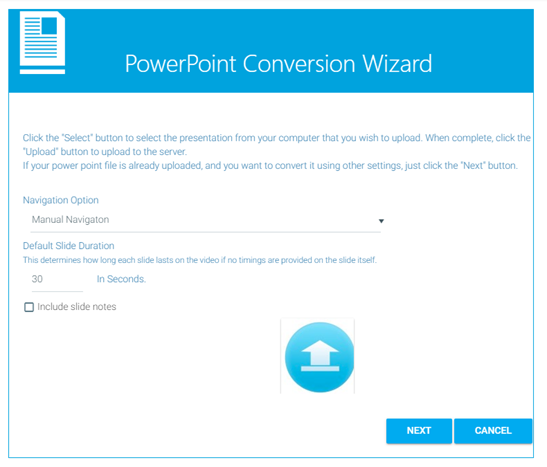
Manual navigation is best for PowerPoint files that do not contain narration or slides with timings. This allows the user to read each slide at their own pace.
This option is best for PowerPoint files that are narrated or slides with timings. Each slide will play based just like it does on your desktop. When completed, the system will automatically load and play the next slide. Users can manually navigate if desired.
This value is the default duration for each slide if a duration is not provided on the slide itself. If narration, a video, or animation is on a slide, these elements take some amount of time to play and the system will automatically adjust the duration of the slide. When no narration, video, or other timings are provided, the system will use the default slide duration to determine the length of the slide.
In many cases, notes on the slides add value to the presentation by holding additional text to help explain the slide content. You may wish to skim the slide deck to see if slide notes are present and applicable to the audience. If you want to include slide notes in the course, check the Include Slide Notes check box.
As of January 18, 2020, there is a new PowerPoint conversion tool. If you have courses that were converted using a prior version of the tool, those courses will no longer be supported when browsers stop supporting Flash in late 2020. If you intend to continue using those courses, follow these steps to update them:
You can also use the Course Import Wizard to import a PowerPoint course. The Course Import Wizard has the ability to generate suggestions for quiz questions, course title, description, and time requirement during the course import. You have the ability to accept, reject, or edit these suggestions.
To access the Course Import Wizard, navigate to Wizards > Course Import Wizard in the Administrator's Console.
For information on using the Course Import Wizard, see Importing Courses.
When using the PowerPoint Conversion Wizard, it turns the PowerPoint into an online course, like a video. This means that a link to a website on a PowerPoint slide will not work or be clickable because the slide is playing like a video.
If you wish to use external links in a PowerPoint learning resource, you can choose one of the following options:
When users take the course, they will have a user experience that looks like the image below:
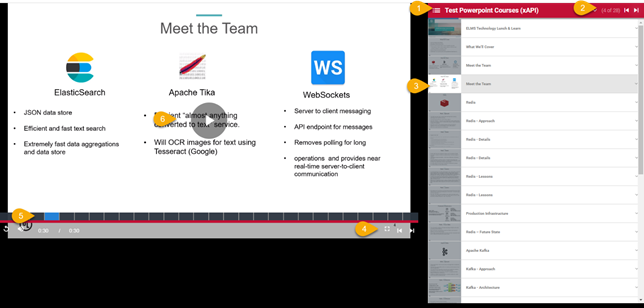
Key navigational elements are noted on screen. They are: