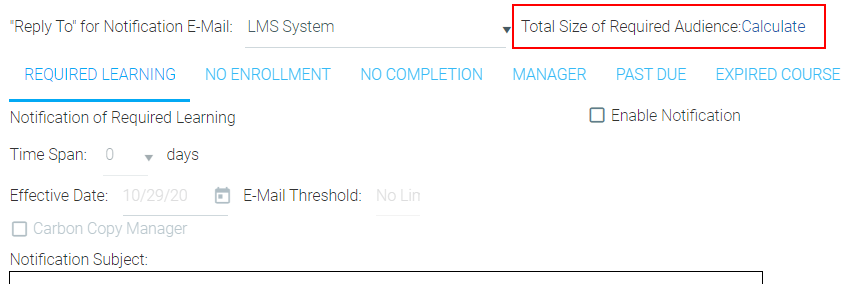
The Required Course Notifications are specialized notifications designed to work with enrollments created by setting a required audience in the Audience tab of a resource. Required Course Notifications must be set up and manually enabled for each resource. There is no system default for these notification types. If the Required Course Notification is not enabled, users will not know that they are required to complete a required course.
There are six types of required course notification:
Each notification’s settings can be set independently and can be independently enabled and used.
To enable Required Course Notifications, go to Resources > Maintain Learning Resources in the administration console, search for the resource, and click Edit int the toolbar. Once the resource is open, go to the Req'd Course Notifications tab.
The available notifications will appear as sub-tabs.
To check who is in the required audience for this resource, you can click the Total Size of Required Audience link at the top right.
On each sub-tab, you will be able to set the following fields:
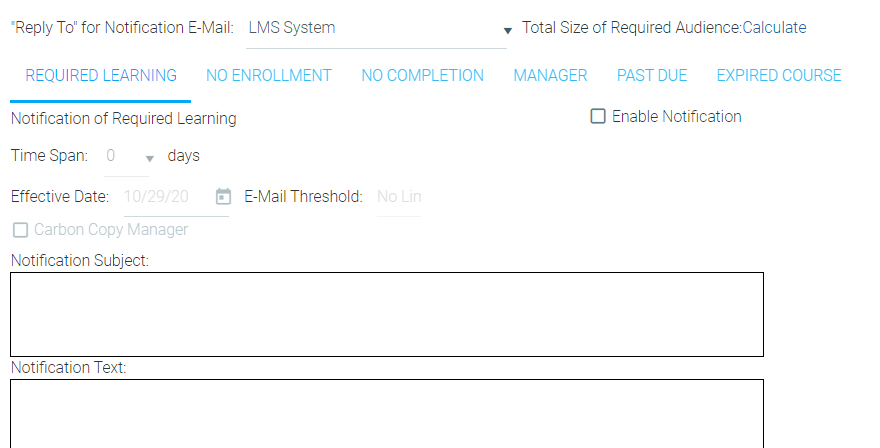
The Time Span options vary by notification type. Listed below are the rules that the LMS follows when determining when each notification type should be sent based on time span options.
Note: The LMS will never send two types of Required Course notifications to the same user for the same course on the same day. If two types of notifications are scheduled to go out on the same day, the LMS will use the following order to determine which notification should be sent.
The date of notification for the Required Learning notification is set by the Time Span and Days fields.
If a time span of 0 (the default) is used, a user will receive this notification on the effective date for this requirement or on the day that they enter the required audience for the course, whichever is later.
When a time span greater than 0 is entered, the LMS will add that many days to the effective date or to the day that the user entered the required audience, and the notification will be sent on that date.
The date of membership into the required audience is calculated as follows:
The date of notification for No Enrollment is set by the Reminder type and Days fields.
The Reminder type "Days after last reminder" is calculated on the last time the system sent any type of required notification to a select user for the selected resource. The system will add the number of days specified in the Days field and send on that date. The system will continue to periodically send this notification (based on the number of Days selected) until the user enrolls in a class date.
The Reminder type "Days prior to Due Date" is calculated based on the the completion deadline for each user for this resource. The system will subtract the number of days specified in the Days field and send on that date. Selecting this option also causes the Subsequent Reminders field to appear, where you can set additional reminders to be sent every specified number of days after the initial reminder. If the “subsequent reminder” is left at “0” (the default), the user will not receive any subsequent reminders.
The date of notification for No Completion is set by the Reminder type and Days fields.
The Reminder type "Days after last reminder" is calculated on the last time the system sent any type of required notification to a select user for the selected resource. The system will add the number of days specified in the Days field and send on that date. The system will continue to periodically send this notification (based on the number of Days selected) until the user enrolls in a class date.
The Reminder type "Days prior to Due Date" is calculated based on the the completion deadline for each user for this resource. The system will subtract the number of days specified in the Days field and send on that date. Selecting this option also causes the Subsequent Reminders field to appear, where you can set additional reminders to be sent every specified number of days after the initial reminder. If the “subsequent reminder” is left at “0” (the default), the user will not receive any subsequent reminders.
The date of notification for No Enrollment is set by the Reminder type and Days fields.
The Reminder type "Days after last reminder" is calculated on the last time the system sent any type of required notification to a select user for the selected resource. The system will add the number of days specified in the Days field and send on that date. The system will continue to periodically send this notification (based on the number of Days selected) until the user enrolls in a class date.
The Reminder type "Days prior to Due Date" is calculated based on the the completion deadline for each user for this resource. The system will subtract the number of days specified in the Days field and send on that date. Selecting this option also causes the Subsequent Reminders field to appear, where you can set additional reminders to be sent every specified number of days after the initial reminder. If the “subsequent reminder” is left at “0” (the default), the user will not receive any subsequent reminders.
The date of notification for Past Due is set by the Reminder type and Days fields. This notification only accepts the "Days prior to Dute Date" Reminder type.
The Reminder type "Days prior to Due Date" is calculated based on the the completion deadline for each user for this resource. The system will subtract the number of days specified in the Days field and send on that date. Selecting this option also causes the Subsequent Reminders field to appear, where you can set additional reminders to be sent every specified number of days after the initial reminder. If the “subsequent reminder” is left at “0” (the default), the user will not receive any subsequent reminders.
Set the time span to 1 or greater to ensure that the user has the full final day to complete the course before receiving the past due notification. If the time span is left at 0, the system will queue up the notification during the evening of the due date. This means that someone could complete the course at 10pm EST on the due date and still receive a past due notification.
The date of notification for Expired Course is set by the Time Span field.
The Time Span setting "Upon Expiration" is calculated based on the expiration date for each user for the resource. The notification will be sent on the expiration (completion deadline) date or on the effective date of the notification, whichever date is later.
The Time Span setting "Visibility on Development Plan" is calculated based on when the course becomes visible in the user's Training Plan, according to the Expiration Appearance field of the Audience tab. The notification will be sent on the day that the course becomes visible or on the effective date of the notification, whichever date is later. This message can repeat based on the expiration period. In other words, if the course expires every 365 days, this notification can repeat once every 365 days.
Once the Expired Course Notification has been sent, other notification types can be used as follow up reminders for the expired course.
Note: If this notification is enabled after a user was scheduled to receive it, the notification will not be sent to that user. There is no way to have the system “catch up” on missed expiration notifications.
Available Resource and Media Type Notifications