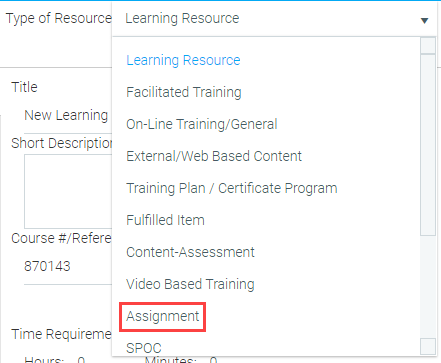
The Assignment resource type allows an administrator to assign work that will be completed outside of the LMS. The assignment and any associated instructions are accessed through the user’s Learning Plan. Once the user completes the assignment, they can upload it into the LMS. Those assignments are then routed to a reviewer (or review team) who can either mark the assignments complete or send them back to the user if additional work is required.
To create an Assignment, go to Resources > Maintain Learning Resources. Click the New button in the toolbar, then select New Learning Resource. Select Assignment in the Type of Resource drop-down at the top of the page.
Enter the course title, course provider, etc. as you would for any new resource. The selected media type should be an online media type.
When the new resource opens, go to the Assignment tab. If you do not see the Assignment tab, verify that Assignment is selected as the Type of Resource.
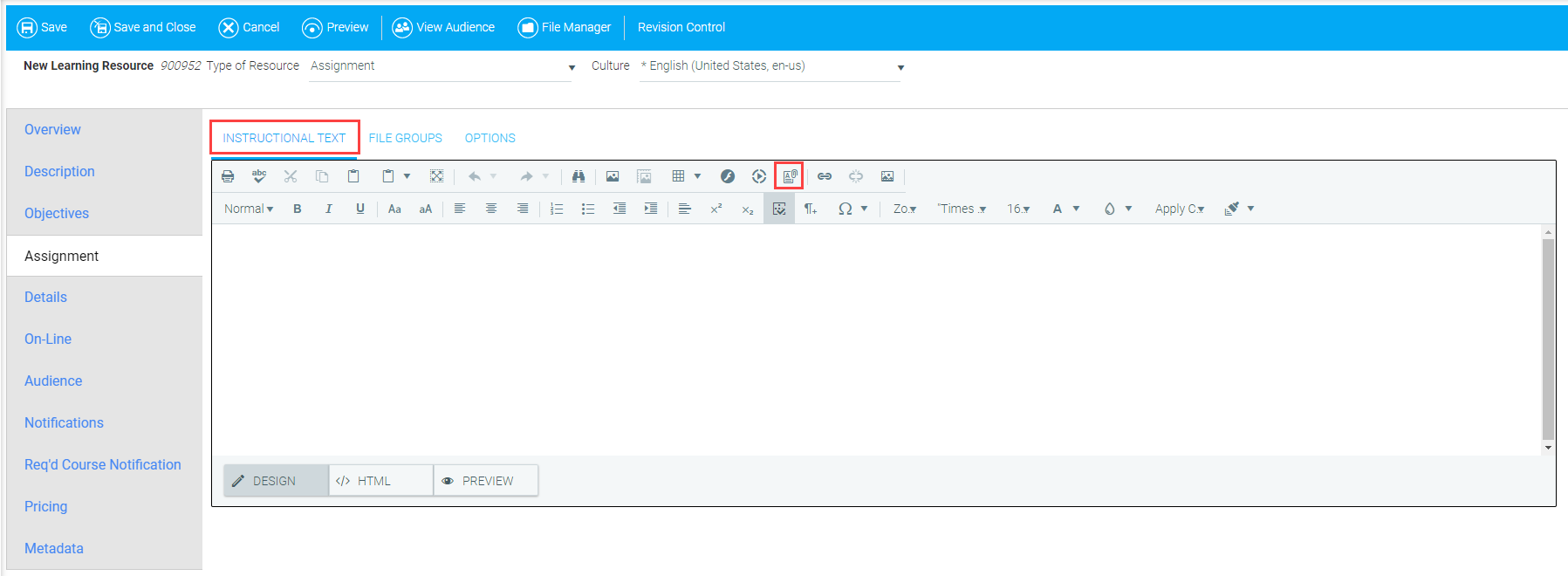
On the Instructional Text sub-tab enter instructions to the user (e.g., "Create a video of you operating a forklift"). If they need to access any documents to complete the assignment, the documents should be loaded and linked here using the document manager.
The File Groups sub-tab is where you can designate the file type that the user should upload for the assignment. Multiple file types for multiple uploads under one Assignment Resource can be selected. Additional instructions for each individual assignment can also be added.
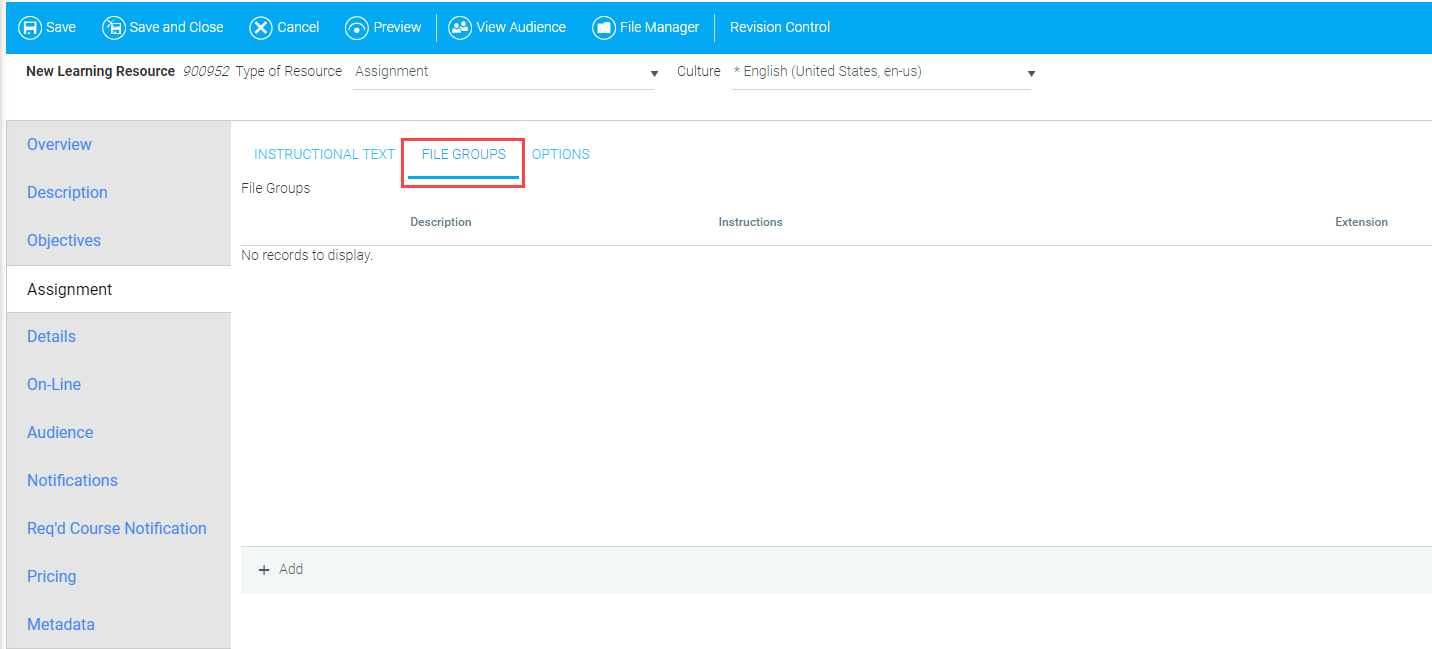
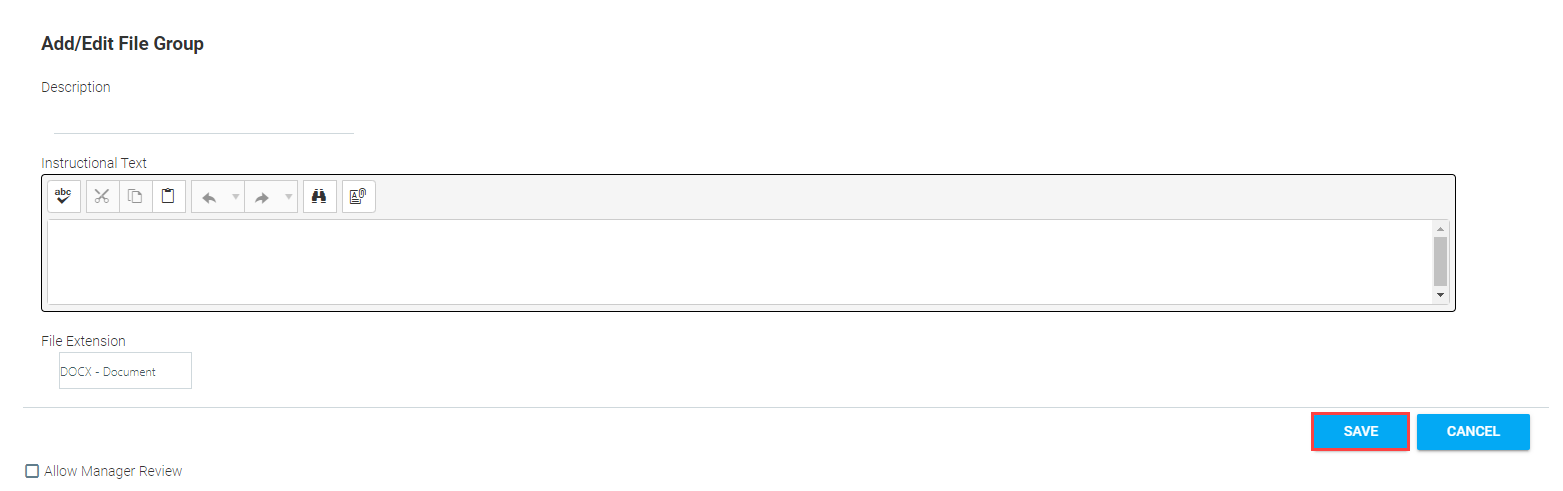
To add a file group, click Add. The screen will expand to show the Add/Edit File Group options. Enter a description and any necessary instructions for saving or formatting this file type.
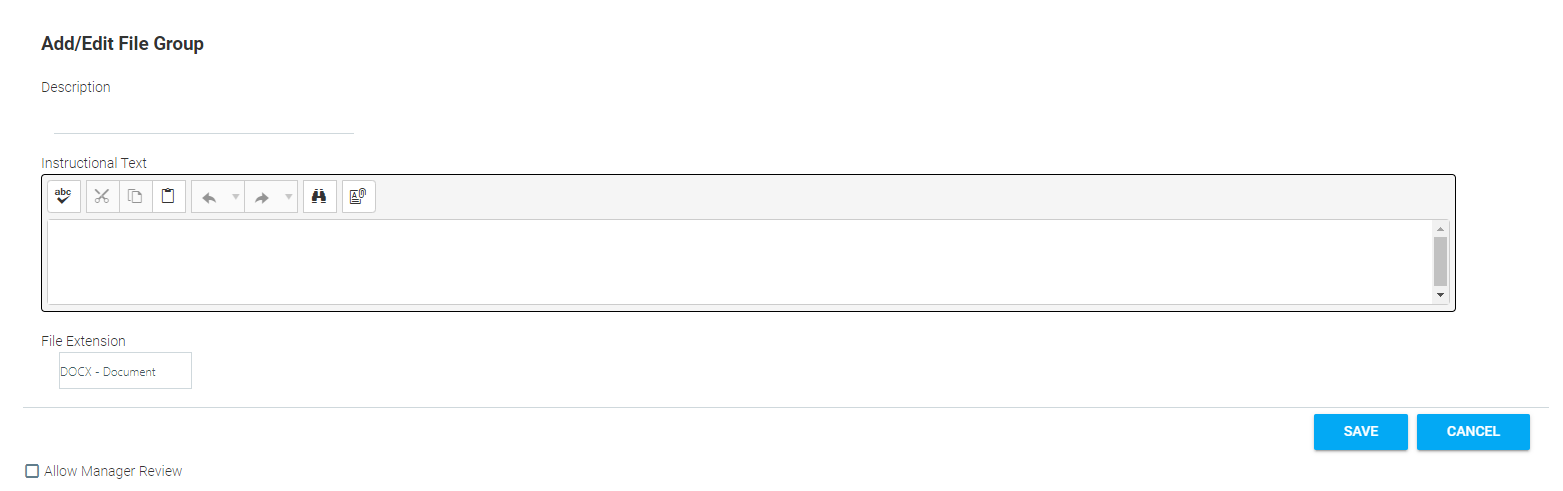
Then use the File Extension drop-down to specify which file type the user needs to upload.
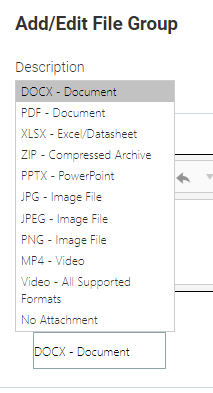
There may be a situation in which a user is required to upload a video performing a task to prove that they have mastered a certain type of skill or training. In cases where video is being utilized, there are now two different file type options - "MP4 - Video" and "Video - All Supported Formats".
In the past, "MP4 - Video" was the only video-based option available from this menu, and as the name suggests, only MP4 formatted files could be uploaded here. This option will remain for the sake of backwards compatibility with existing courses. The new file type option, "Video - All Supported Formats", can be used to upload any of the acceptable formats listed in the Supported Video File Formats chart on the Video-Based Courses page.
The use of video assignments allows users to upload a video from their computer or to record directly into the LMS using their device's camera and microphone.
Click Save.
The Options sub-tab contains Review and Completion options.
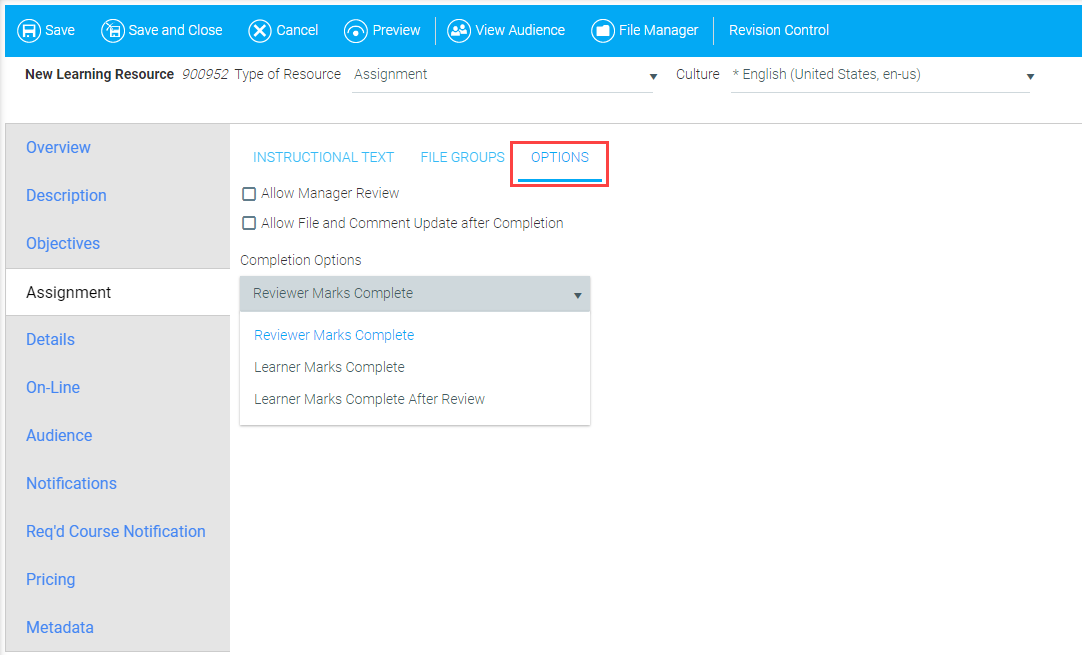
The assignment resource can be reviewed by a designated reviewer and/or by the user’s manager. If the user’s manager should review this assignment, check the Allow Manager Review box. In order to use this feature, ensure that the user is assigned to a manager on their profile. If the assignment will be reviewed by a designated reviewer only, leave the box unchecked. If the Allow Manager Review box is checked AND a reviewer is designated, when a user submits their assignment it will go to both the manager and the reviewer. Either the manager or reviewer will then be able to mark the user complete.
Check the Allow File and Comment Update After Completion box if you want the user to be able to continue to add files and comments after the assignment has been completed and is on the user's Learning History. This can be helpful by allowing users to make notes and keep updates about what they have learned over time.
The Completion Options drop-down menu contains three options for determining the method by which an assignment is marked complete.
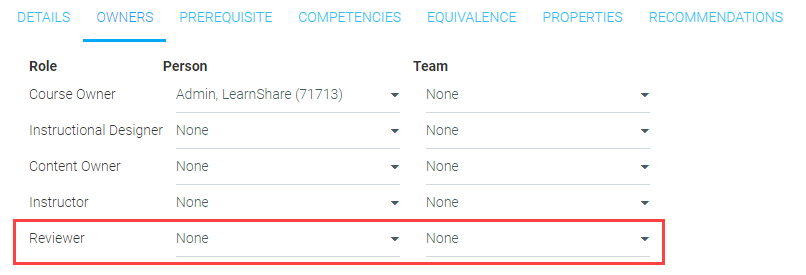
To designate the reviewer or review team for a resource, go to the Details tab, then the Owners sub-tab. Use the drop-down menus in the Reviewer row to select a reviewer and/or review team.
Continue to set up the resource audience, notifications, etc., and click Save and Close when you are done.
Below is an example of an assignment resource on a user’s Learning Plan.
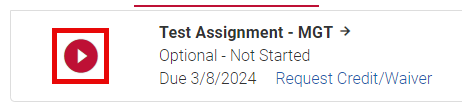
The user will need to click the Play button or the Take Course button to launch the course. When the course launches, the user will see the instructions and an Upload button for each file type that the administrator selected.
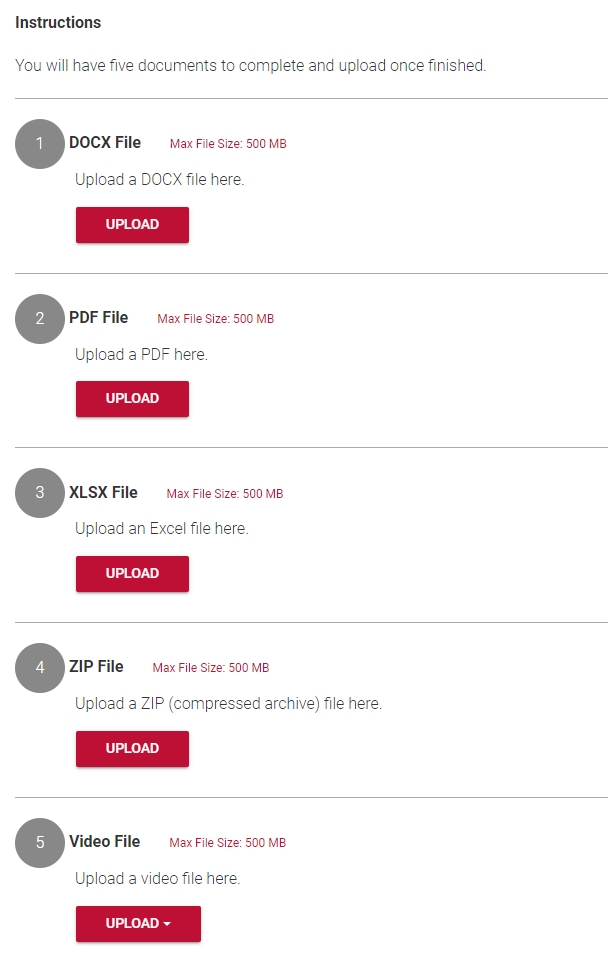
The user will then need to complete the assignments and upload the completed work here.
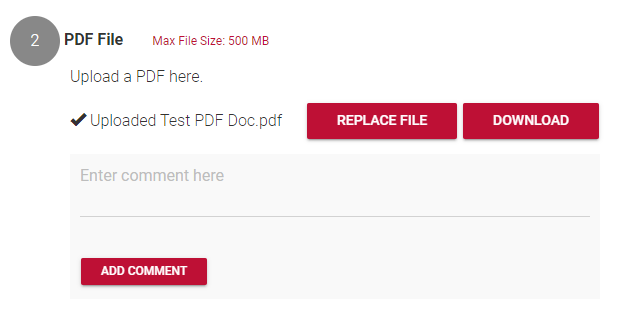
Once an assignment has been uploaded, the user will be able to post comments about the assignment. These comments will be visible to the reviewer once the assignment is submitted for review. The user can replace their file or download/view it until they submit the assignment for review.
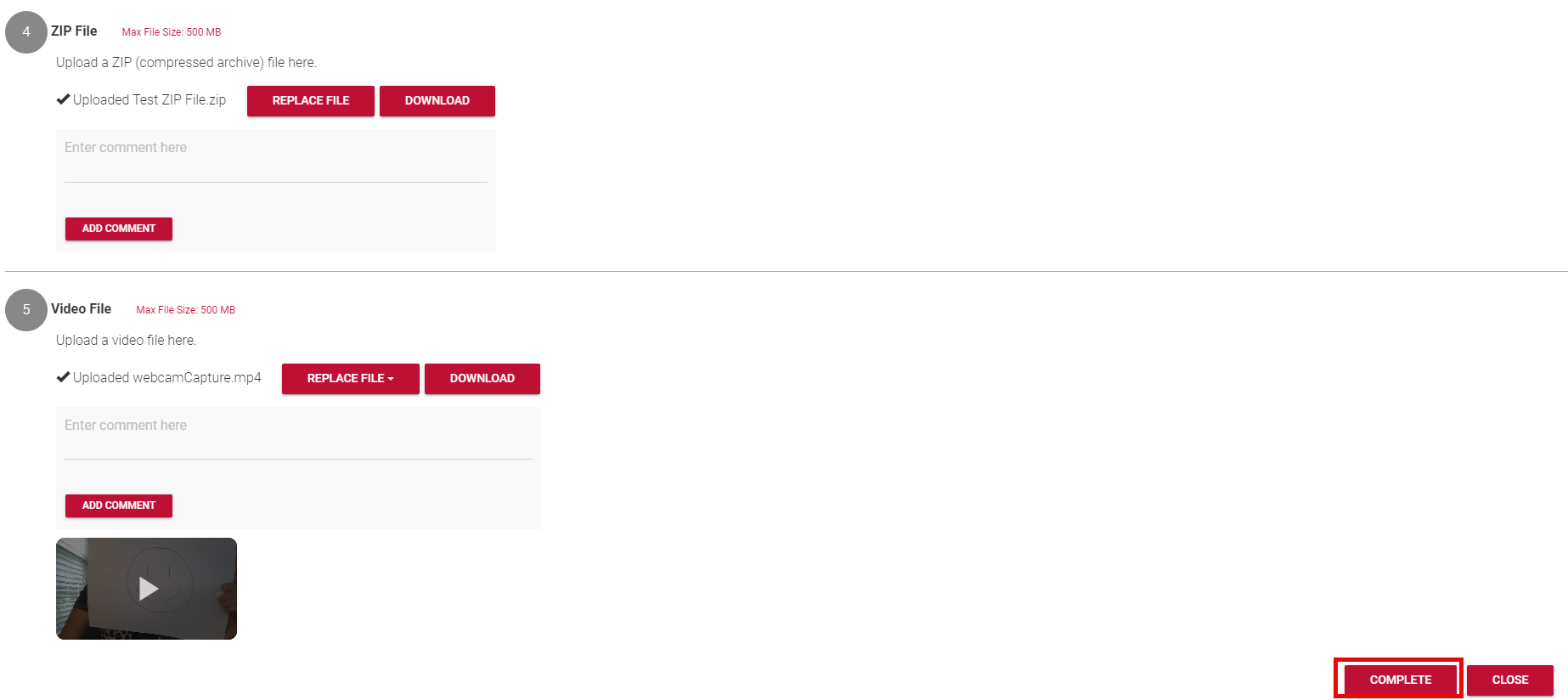
Regarding video assignments, users have the option to upload a video file from their computer or to record a video directly into the LMS through the use of their camera and microphone.
Like other assignment file types, users can replace, download/view, and comment on video files until they submit their completed work.
Once all of the required files have been uploaded, the user will be able to submit their work.
Once a reviewer has assessed the user’s assignment, the user will receive a notification that either:
Once an assignment has been approved and moves to the Learning History, the uploaded documents can be viewed, but no changes can be made to either the documents or the associated comments.
When a user submits an assignment for review, a notification will be sent to the reviewer informing them that an assignment resource is pending review for that user. This notification will contain a link that will take the reviewer directly to the Reviewer's Desk (name may differ in your system).
The Reviewer's Desk screen gives access to all assignment resources that have been submitted to that reviewer. On the Reviewer’s Desk the reviewer can see the name of the user, the course name, and the date that the assignment was submitted for review.

Click on the Review button to see all of the assignments that have been uploaded for that user. You will also be able to view any comments that the user posted.
After the assignments have been reviewed, the reviewer can either: