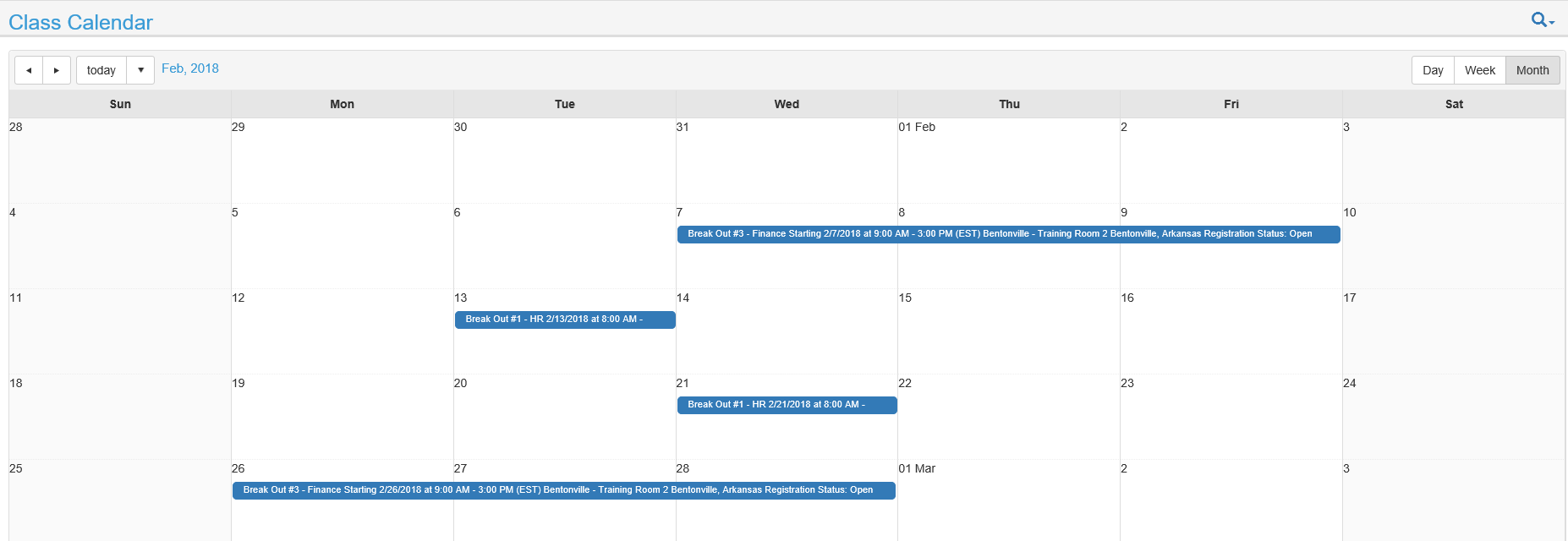
The Class Calendar is an end-user screen that displays Instructor-Led Training Classes (ILT). The calendar allows users to see all upcoming classes that are available to them.
Important Note for ELMS systems: This calendar will only display class sessions created on the Learning and Development (non-GXP) side of the ELMS. Class Sessions created on the GXP (CW) side will not be listed on the calendar.
When a user clicks on a class that is displayed on the class calendar, the course description page will open.
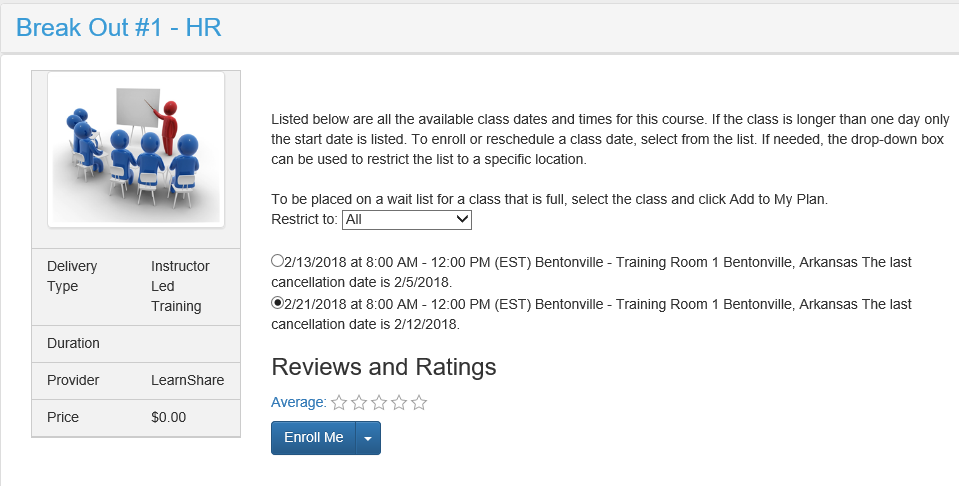
The user can then select a specific class session and click Enroll Me to enroll themselves into it.
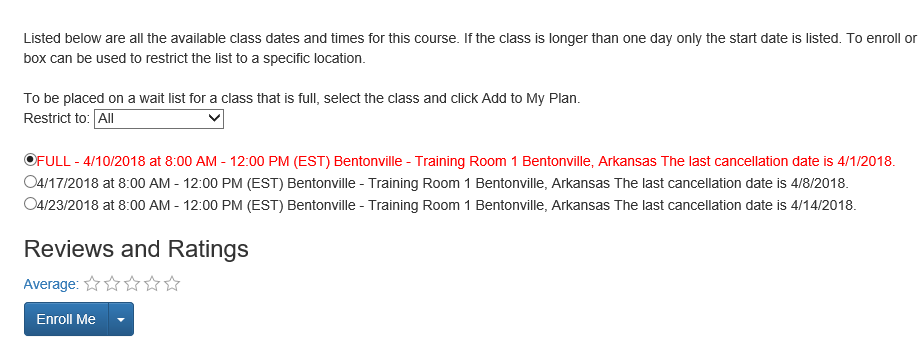
If a specific class session is full, this will be clearly displayed on the course description page. If the waitlist is enabled for that class session, the user will be able to enroll onto the waitlist. If a spot opens the user will be automatically enrolled into the class. The user will be notified via email that they have been moved from the waitlist to the class roster.
A user will see all classes that they are in the audience for on the Calendar. A user may enroll in any class that they can view on the Calendar, assuming that there are seats available and the manager approval process is followed.
In order for a class session to be visible to a user, the user MUST be in the resource audience by being a member of at least one of the following:
However, the audience for specific class instances can be limited through one of the following:
A user is located in Princeton, NJ and is in the Primary Audience for Resource A.
Resource A is being offered 4 times at different locations. It is being offered in Princeton 2 times.
Each venue has audience mapping set up so that users can only see classes being offered at their location.
Result: The user will only see the two Princeton instances on their class calendar since those are the only two that they are allowed to enroll in.
A user is located in Princeton, NJ and is in the Primary Audience for Resource B.
Resource B is being offered 4 times at different locations. It is being offered in Princeton 2 times.
No audience mapping has been set up on any of the venues.
Result: The user will see all four sessions being offered on their class calendar, and the LMS will allow them to enroll in any of these four sessions since no audience restrictions were placed on the class session.
A user is located in Princeton, NJ and is NOT in the Primary Audience for Resource C. The user is also not a member of a secondary audience (course catalog or mapping curricula)
Resource C is being offered 4 times at different locations. It is being offered in Princeton 2 times.
Each venue has audience mapping set up so that users only see classes being offered at their location.
Result: The user will NOT see any of these class sessions, even though the user is in Princeton. The user must be in an audience for the resource in order to see the associated class sessions.
A user is not in a resource audience for Resource C. However, Resource C is part of Certificate A and the user is in the audience for Certificate A.
If the user enrolls in Certificate A, they will be able to see Resource C as part of the certificate and they will be able to enroll in a class date directly from their Learning Plan.
Result: Resource C will still not appear on their Class Calendar.