Getting to Know the LearnShare LMS
Getting started in any new program can be overwhelming, and sometimes it is difficult to know where to start. This section provides a starting point for new administrators who wish to acclimate themselves to the LearnShare platform.
Overview of User Screens
Home Page
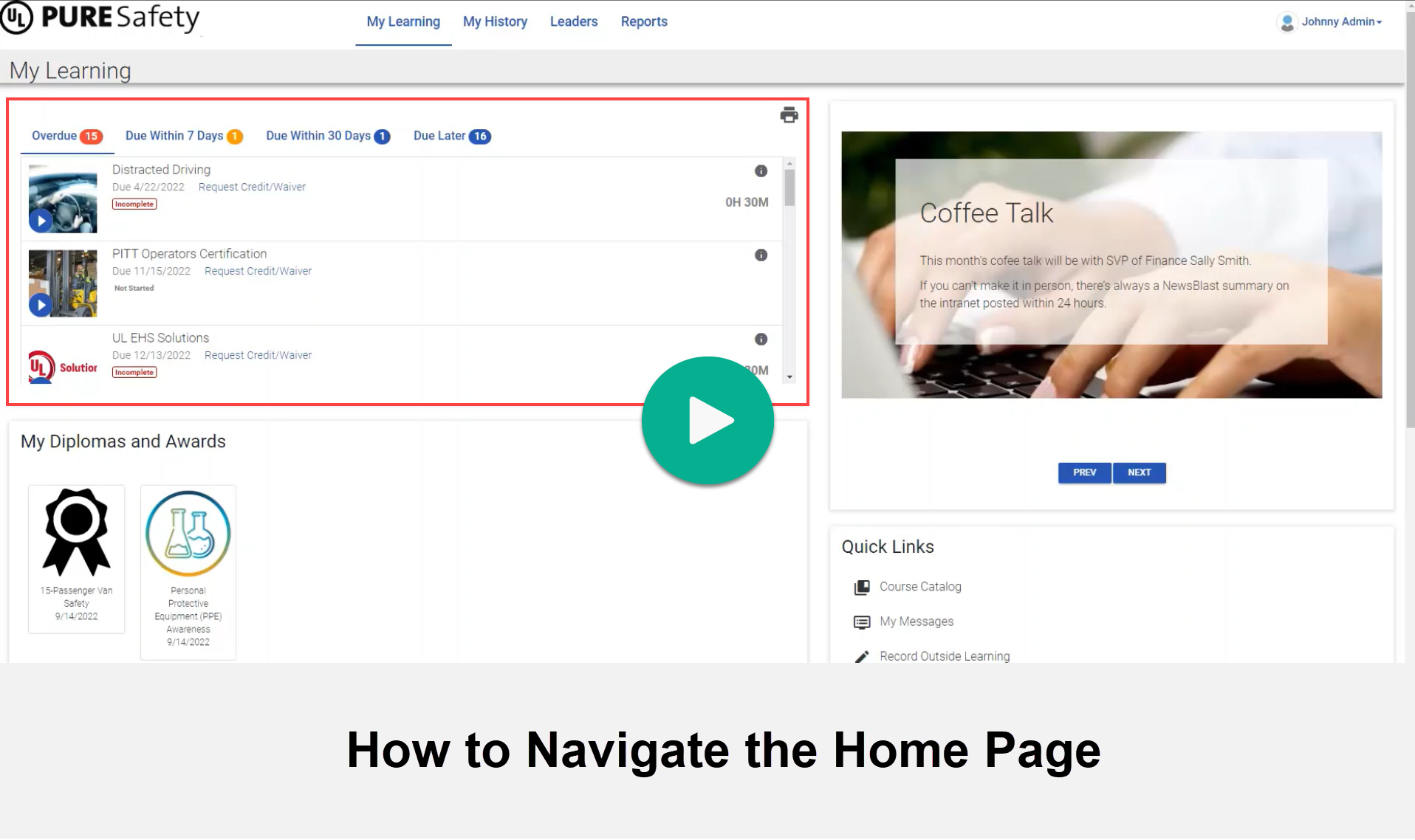
The Home Page is the first screen that you will encounter when you access the LMS. It is comprised of multiple widgets that can be customized to meet each organization's needs. Additionally, different Home Pages can be created for various subsets of your audience if desired. See the video below for a basic introduction to the Home Page, including a description of several of the common features and widgets that are utilized on this screen.
My Learning
From the Home Page, users can access their Learning Plan to see any courses that they have been assigned or signed up for on their own. This includes required learning, elective learning, and outside learning, and course evaluations. To access the My Learning screen, click on My Learning then Learning Plan from the Home Page. See the video below for more information on the My Learning feature. Following that, you will see several videos about enrolling, using the class calendar and course catalog, as well as other videos that apply to the My Learning feature of the LMS.

Add Outside Learning to Learning Plan

How to Use a Course Catalog

Enrolling Other Employees

How to Use the Class Calendar

My History
From the Home Page, users can visit the My History page to view a list of all of the learning resources that they have launched. The list will include the status of each resource, such as complete or incomplete. To access the My History screen, click on My Learning then Learning History from the Home Page. See the video below for more information on the My History feature.

Reports
All managers have access to the Report Catalog, but individual users have access to specific reports as assigned by their LearnShare administrator. These reports only show data for users who report to you. To access the Report Catalog from the Home Page, click Reports then Report Catalog. See the video below for a brief introduction to reports and how to run them.

My Messages
The My Messages functionality shows any message sent to you from the LearnShare systems such as enrollment notifications and class reminders. See the video below for more information.

Announcements
Announcements can be created and managed through both the Home Page (as a widget) or the Administrator's Console. Most tasks pertaining to managing announcements can be accomplished through the Announcements widget on the Home Page, but there are some instances in which you will need to access the Administrator's Console for more detailed specifications (i.e., additional formatting, HTML options, audience limitation). To manage announcements from the Administrator's Console, go to Tools > Maintain Announcements in the Navigation Bar.
For more detailed instructions, see Using Announcements.
Managing People and Groups
There are many functions available to manage users in the LMS. The Add New People Wizard allows an administrator to manually add one or more users to the LMS. The People & Security function contains nearly all of the tools needed to manage both learning users and administrative users. Teams can be used to define various roles that may apply to a group of users.
For more information on managing people, start with Overview - Managing Users, then visit the topics that follow in the Navigation tree.
Administrator Screens
There is an extensive selection of different screens and functionality that exists for administrators to utilize and benefit from, and each system is configured to meet the specific needs of the client or organization. Therefore, no two systems will look exactly the same. All of the administrative screens are contained within the Administrator's Console. Each administrator will have access to an Administrator's Home, which contains a series of widgets. The Navigation Bar provides access to all available administrator screens configured for your system. The Information Bar is located across the top of the Administrator's Home and contains information regarding users online, user logins, course launches, and scheduled errors/warnings. The Header Tool Bar contains the Help icon, the Profile icon, and the Multi-Screen Navigation icon.
For a more in-depth description of the administrator screens, see Administrative Screens.
Audience Templates / Groups
The Audience Mapping feature allows administrators to target a group of users and training through the assignment of domains, users, and/or rules (simple or advanced). Administrators can then control users’ access to training and content in course catalogs, as well as assign and manage required training. Groups of users in LearnShare are managed through Audience Templates.
For information on managing groups via audience templates and utilizing audience rules, start by viewing About Audience Mapping, then visit the topics that follow in the Navigation tree.
Maintain Learning Resources
A learning resource refers to any type of training used in LearnShare. Learning resources can be self-guided, web-based material launched by the learner or include the involvement of a trainer or learning coach. Many learning resources are available at any day and at any time. Others, like facilitated or instructor-led training, occur on a fixed date and time.
Some examples of learning resources might be:
- Reading an online book or a presentation
- Taking an online course or viewing a video, possibly with a quiz at the end
- Reviewing online content line and signing off as having done so for compliance
- Attending an in-person or virtual training seminar
For more information on learning resources, see About Learning Resources, then visit the topics that follow in the Navigation tree.
How to Create a New Resource
To create a new learning resource, navigate to the Administrator's Console. From the Navigation Bar select Resources, then Maintain Learning Resources. Click the Add button to create a new learning resource. For more information on creating the various kinds of learning resources, see Create or Edit a Learning Resource along with the topics that follow.
Below you will see several videos that show how to create a different types of learning resources (including certificates, SPOCS, and assessments) and how to add them to a course catalog. Additionally, Quick Reference Guides are available under the Getting Started section of the table of contents.
Setting Up an eLearning Course

Setting Up a Video Course

Setting Up a PowerPoint Course

Setting Up a Read-and-Sign

Setting Up an Assessment

Setting Up Quiz Questions for Assessments

Setting Up a Certificate

Adding Courses to a Certificate

SPOC - Overview

SPOC - Announcements and Discussions

SPOC - Create a SPOC

SPOC - Create a Facilitated SPOC

SPOC - Resource Types

Adding a Course to the Course Catalog

Creating Assignments
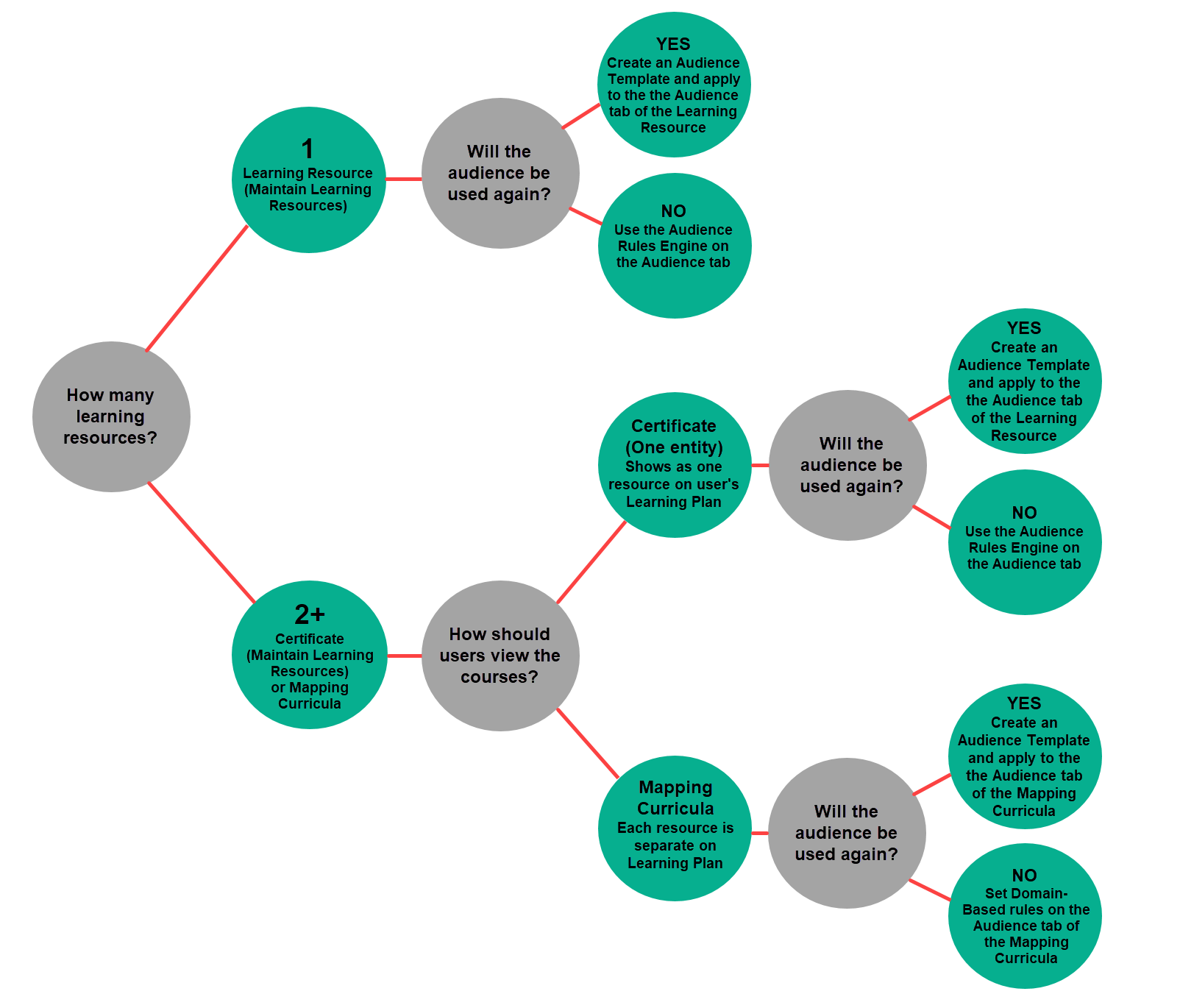
In LearnShare, assignments are generally managed through mapping curricula or via the Audience Tab of a learning resource (for individual courses or certificates). Certain questions must be answered in order to determine the best way to manage assignments. For example:
- Will you be assigning multiple training courses or just a single course?
Mapping Curricula are used to group courses together for an audience, but each course is seen individually on the user's Learning Plan. Mapping Curricula are accessible through Resources > Maintain Mapping Curricula.
Certificates group several training courses together as a single entity. Users must complete each training activity required by the certificate in order to complete the certificate. Certificates are accessible through Resources > Maintain Learning Resources.
Single training courses are created and managed through Resources > Maintain Learning Resources.
- Will you be using a one-time audience or an audience that will be used repeatedly?
Audience Templates are beneficial to use if you are going to be using an audience multiple times or in multiple areas of the LMS. Audience templates are created and managed through Resources > Maintain Audience Templates. To learn more about creating audience templates, see Creating an Audience Template.
If you only need a one-time audience, it is best to utilize the Audience tab of the learning resource or mapping curriculum to define the audience.
For information on managing assignments, start by viewing Managing Course Audiences, then visit the topics that follow in the Navigation tree.
Using Mapping Curricula
To assign multiple resources to a single audience, it is best to utilize the Mapping Curricula feature. Unlike certificates, mapping curricula assigns multiple resources to an audience, but each resource shows up individually in the user's Learning Plan.
For information on using mapping curricula, start by viewing Using Curricula, then visit the topics that follow in the Navigation tree.

Instructor-Led Training
The Maintain Facilitated Sessions screen is where you can create and maintain class sessions for Instructor-Led Training (ILT). A class session occurs at a specific date, time, and location, and a class session is specific to one learning resource.
From the Maintain Facilitated Sessions screen, you can:
- Create new class sessions
- Maintain class rosters
- Grant credit for completed classes
- Send any necessary communications
For information on managing Instructor-Led Training, start by viewing Maintaining Facilitated Training, then visit the topics that follow in the Navigation tree.
See the videos below for a quick introduction to creating Facilitated courses as well as adding classes to them.
Setting Up a Facilitated Course

Adding a Class to Facilitated Sessions

The Manage Credit and Enrollment Screen
The Manage Credit and Enrollment screen allows an Administrator to process enrollments and/or credit to a group of users or an individual. This screen offers two ways to see and maintain the same information, the View by Course option and the View by Person option.
For information on managing credit and enrollment, start by viewing Managing Credit and Enrollment, then visit the topics that follow in the Navigation tree.
Reporting and Analytics
Reporting
Reporting is a critical piece of any online system. Reporting in an LMS provides your organization with the tools to assess, benchmark, monitor, manage, and leverage your training and compliance assets and processes. The reporting feature in LearnShare contains a robust selection of reports that users can run to pull learner data, which is then organized into tabular charts. This makes learner data easier to access and understand, which provides administrators and managers greater self-sufficiency; they have the data they need, when they need it.
Many reports are standard, but clients also have the ability to choose additional reports or create their own (Ad Hoc reports).
Reports can be run on demand, but they can also set to run on a scheduled basis. Report output can be made accessible to just the person running it, or to any audience of recipients.
Reports are made accessible through the Report Catalog, and each user’s Report Catalog can be tailored to their needs and security rights.
For information on reporting, start by viewing Reporting, then visit the topics that follow in the Navigation tree.
Analytics with Dashboards
Analytics can be useful in measuring and managing learner data such as training participation, required training compliance, and training effectiveness. This information can provide insights to a business through data visualization, which can support decision making. In LearnShare, Visual Analytics data is organized into dashboards. Dashboards pull learner data and organize it into graphs and charts that simplify the information for the user to view.
See the video below, as well as Analytics in the Online Help, for more information.
