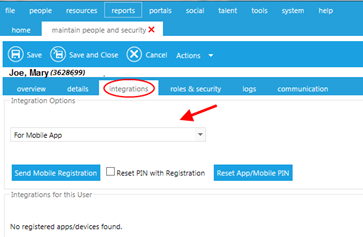
If PENS and or/ ELMS Mobile App or PENS support is enabled, the "Integrations" tab will be displayed, as shown below:
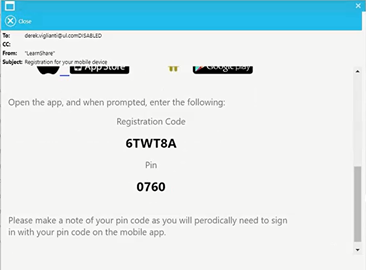
The user will receive an email with the Registration Code and PIN as shown in the example below.
The user can then open the LearnShare ELMS app and complete the registration process.
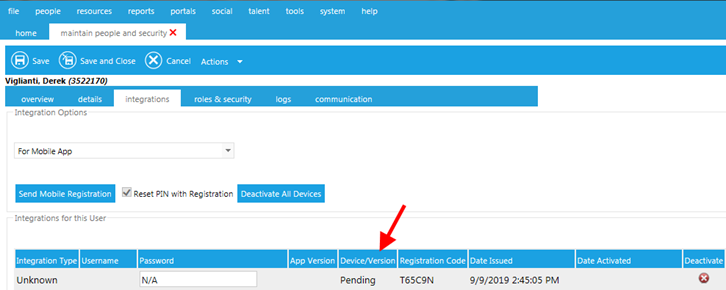
After the user completes the registration process, the apps/mobile tab for the user will now show the activation details. See the example below:
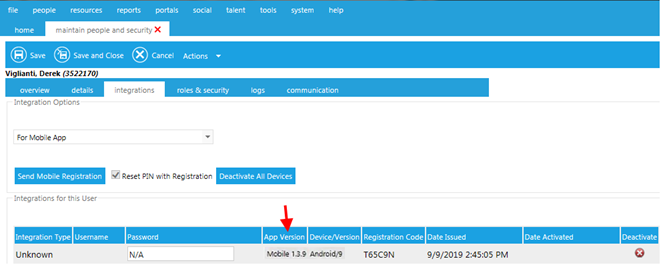
Once activated:
 in the apps/mobile tab.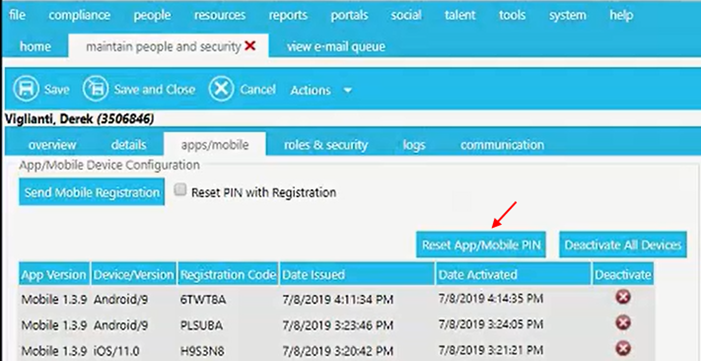
If a user wishes to use the mobile app on multiple devices, they will need another Mobile Registration sent to them, which will include a PIN specific to that device.
If you want to allow learners to register themselves for the mobile app, you will need to create a portal page with the mobile app registration widget. Click here for more information.
When PENS support is enabled for your organization, administrators can authorize selected users to work with authoring tools that support PENS.
PENS is a learning industry standard process to transmit to publish a SCORM, AICC or xAPI compliant course package from a course authoring tool to an LMS. Many course authoring tools support PENS, for example, Claro, Dominknow One, or UL Create.
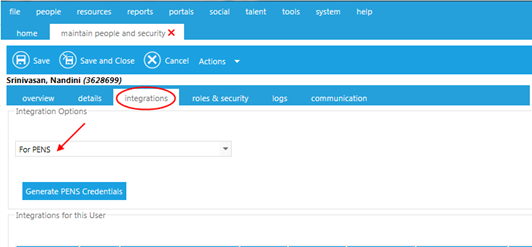
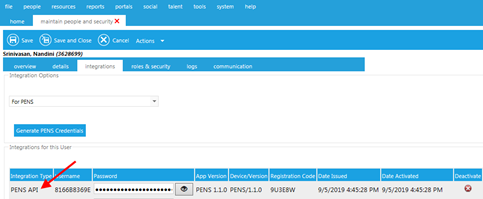
The Administrator can also copy and paste these credentials and notify the user. Clicking the  icon will reveal the password generated. This user can now use this credential in the authoring tool when ready to publish the course to LearnShare ELMS using PENS.
The PENS servers for LearnShare ELMS are listed below. The user must provide a URL for the server when publishing the course in the authoring tool. Addresses will all end in: /AICC/AICC.Pens.aspx
| Environment | URL |
| Production | https://content.learnshare.com/AICC/AICC.Pens.aspx |
| Training | https://trainingcontent.learnshare.com/AICC/AICC.Pens.aspx |
| Sandbox 1 | https://SandboxContent1.learnshare.com/AICC/AICC.Pens.aspx |
| Sandbox 2 | https://SandboxContent2.learnshre.com/AICC/AICC.Pens.aspx |